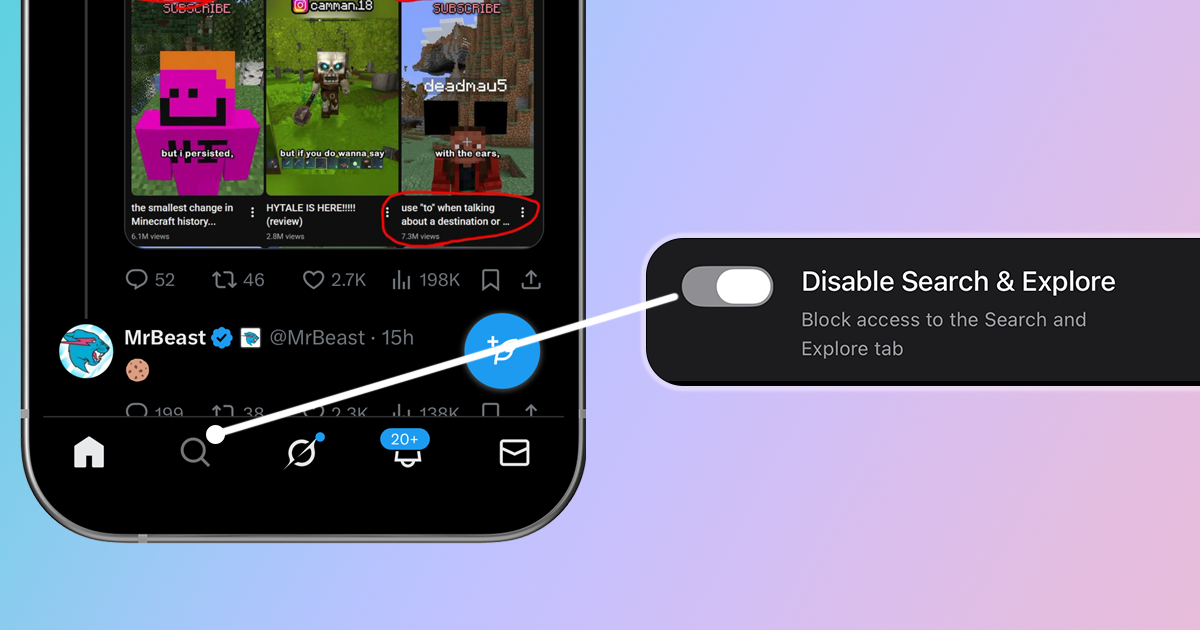
X's Search and Explore tab is a gateway to endless distraction. What starts as a quick check on trending topics turns into 45 minutes of scrolling through viral posts, rage bait, and content you never asked for. If you've ever lost track of time on the Explore page, here's how to disable or block it.
Why You Might Want to Disable X's Explore Page
The Explore page on X (formerly Twitter) uses algorithms to surface content designed to maximize engagement. While that sounds useful, it often works against you:
- Outrage optimization: Trending topics often feature controversial content that triggers emotional reactions
- Endless rabbit holes: One tap leads to threads, replies, and quote posts that consume your time
- Breaking news anxiety: Constant exposure to trending news can increase stress and anxiety
Method 1: Use LoomWeb (Most Effective)
The most effective way to disable X's Search and Explore page is with LoomWeb, an app that allows you to block specific features on social media sites to eliminate distractions.
How it works:
- Download LoomWeb from the App Store or Google Play
- Create a new "Weave" (custom browsing configuration)
- Enable the "Hide Search and Explore" patch for X
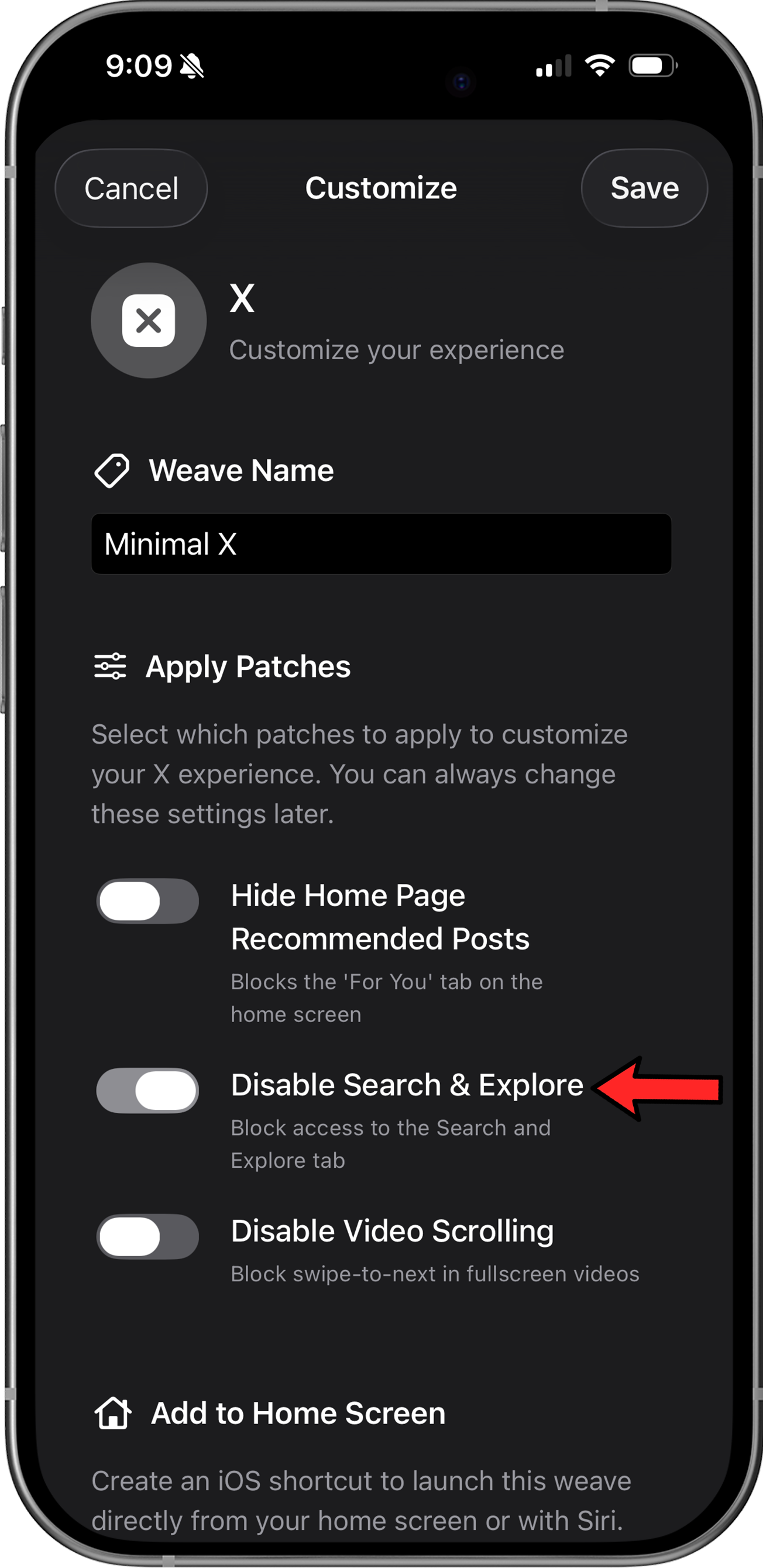
- Browse X through LoomWeb instead of the native app
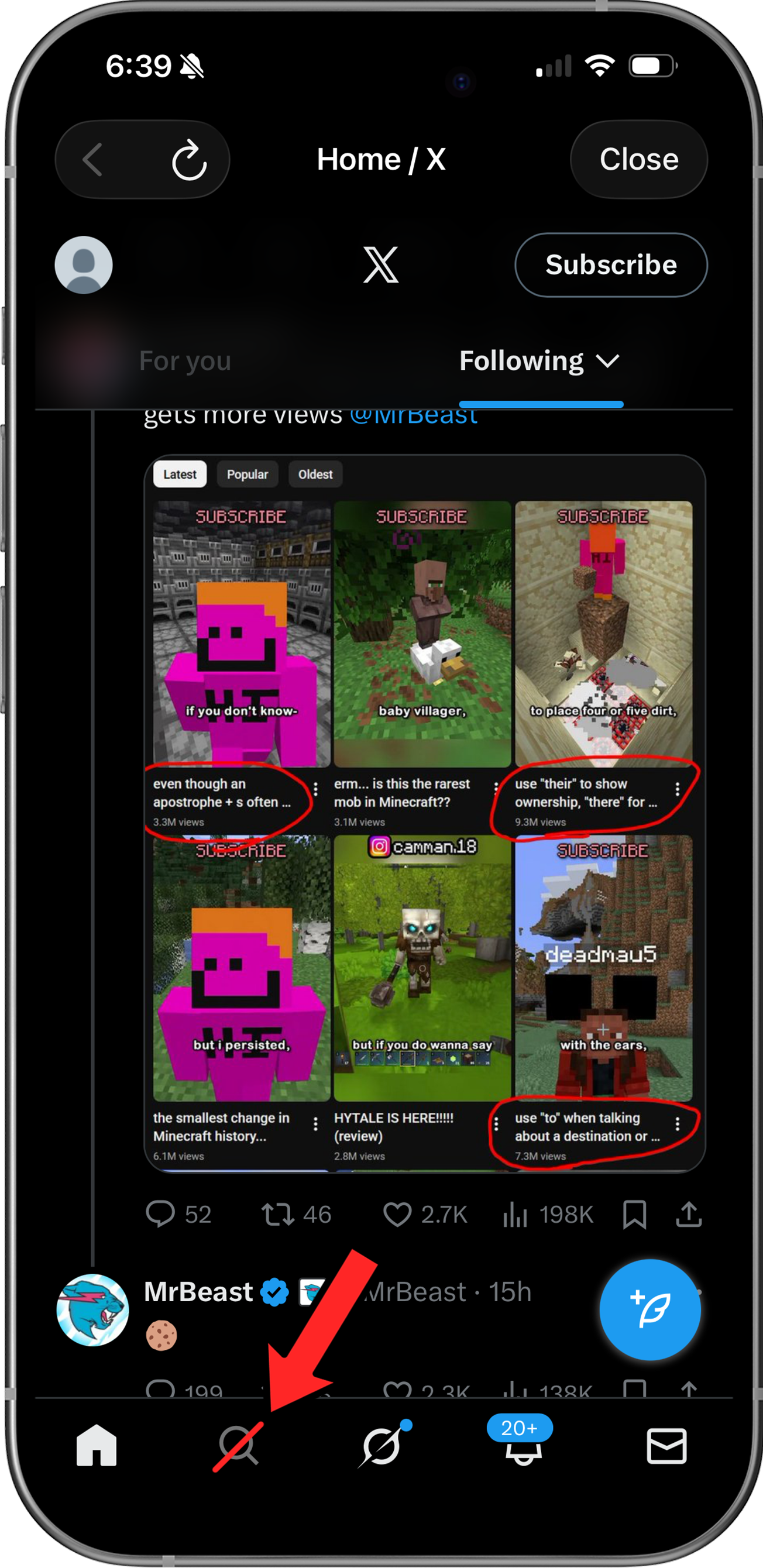
The Explore tab is now blocked, so you can use X without getting sucked into trending topics and viral content.
Ready to browse X without the Explore page?
Method 2: Mute Words and Topics (Limited)
X allows you to mute specific words, which can reduce—but not eliminate—unwanted content in Explore:
- Go to Settings and Support > Settings and privacy
- Tap Privacy and safety > Mute and block
- Select Muted words
- Add words related to topics you want to avoid
Limitation: This only filters specific keywords. Trending topics, viral posts, and recommended content will still appear. You'd need to mute hundreds of words to make a meaningful dent, and new trending topics appear constantly.
Method 3: iOS Screen Time Limits (Limited)
If you prefer to use Apple's built-in tools, you can limit your overall time on the app. While this won't specifically target the Explore tab, it creates a friction barrier that prevents extended scrolling sessions.
Here's how to configure a hard limit for X on your phone:
- Open Settings: Go to your phone's home screen, tap Settings, and select Screen Time (look for the purple hourglass icon).
- Add a New Limit: Tap on App Limits > Add Limit. You may need to enter your Screen Time passcode if you have one set.
- Select X: Tap the Social category to expand it. Check the circle next to X and tap Next in the top right corner.
- Set the Duration: Scroll the timer to choose your daily allowance (e.g., 15 minutes). You can also tap "Customize Days" if you want stricter limits on weekends.
- Enforce the Rule: This is the most critical step. Ensure the toggle for Block at End of Limit is turned ON. Without this, your phone will only send a polite notification that is easy to ignore.
- Save: Tap Add to finalize the settings.
Limitation: The main weakness of iOS Screen Time is that it's easy to bypass. When the time is up, you can simply tap "Ignore Limit for 15 minutes." It's also an app-level restriction; it doesn't target the Explore page specifically
Why LoomWeb is the Better Solution
Unlike workarounds that try to limit your overall usage, LoomWeb gives you surgical control:
- Targeted blocking: Disable Explore while keeping everything else. You can still search for specific users or topics when you need to.
- Stay connected: Block the distraction, not your network. You retain full access to your timeline, DMs, and notifications.
- Combine with other patches: Also hide algorithmic recommendations in your timeline for a chronological-only experience.
- Multiple platforms: Works for Instagram, YouTube, and Facebook too.
The Bottom Line
X's Explore page is designed to maximize your time on the platform, not to inform you. Trending topics are selected for engagement, not importance. The platform has no incentive to let you disable it, which is why there's no official "turn off Explore" setting.
But you're not powerless. With LoomWeb, you can block Explore entirely and use X the way you want to—posting updates, following conversations, and staying connected without getting pulled into the trending topic doomscroll.
Your attention is valuable. Don't let an algorithm decide how you spend it.
Take Control of Your X Experience
Download LoomWeb and browse X on your terms—no Explore, no trending distractions, just the content you choose to see.