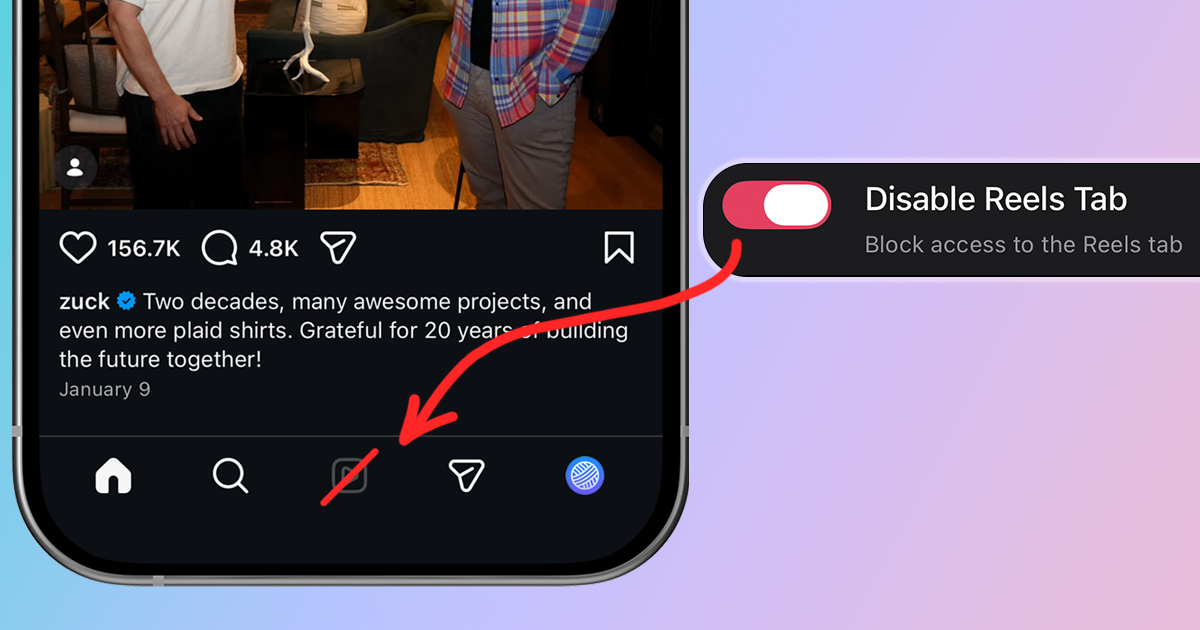
If you've ever opened Instagram to do just one thing and then found yourself 45 minutes deep into Reels, you're not alone. Instagram's short-form video feature is designed to keep you scrolling, but there are ways to fight back. In this guide, we'll cover multiple methods to disable or minimize Reels on Instagram.
Why You Might Want to Disable Instagram Reels
Instagram Reels was launched in 2020 as a response to TikTok's meteoric rise. Since then, it has become one of the most engaging (and time-consuming) features on the platform. Here's why many users want to disable it:
- Time drain: The infinite scroll design makes it easy to lose track of time
- Algorithmic manipulation: The "For You" feed serves content designed to maximize engagement, not your wellbeing
- Distraction from intent: You came to message a friend, not watch 30 videos
- Mental health concerns: Constant exposure to curated content can impact mood and self-perception
Method 1: Use LoomWeb (Most Effective)
The most effective way to disable Instagram Reels is with LoomWeb, an app that allows you to block specific features on social media sites to eliminate distractions.
How it works:
- Download LoomWeb from the App Store or Google Play
- Create a new "Weave" (custom browsing configuration)
- Enable the "Hide Reels" patch for Instagram
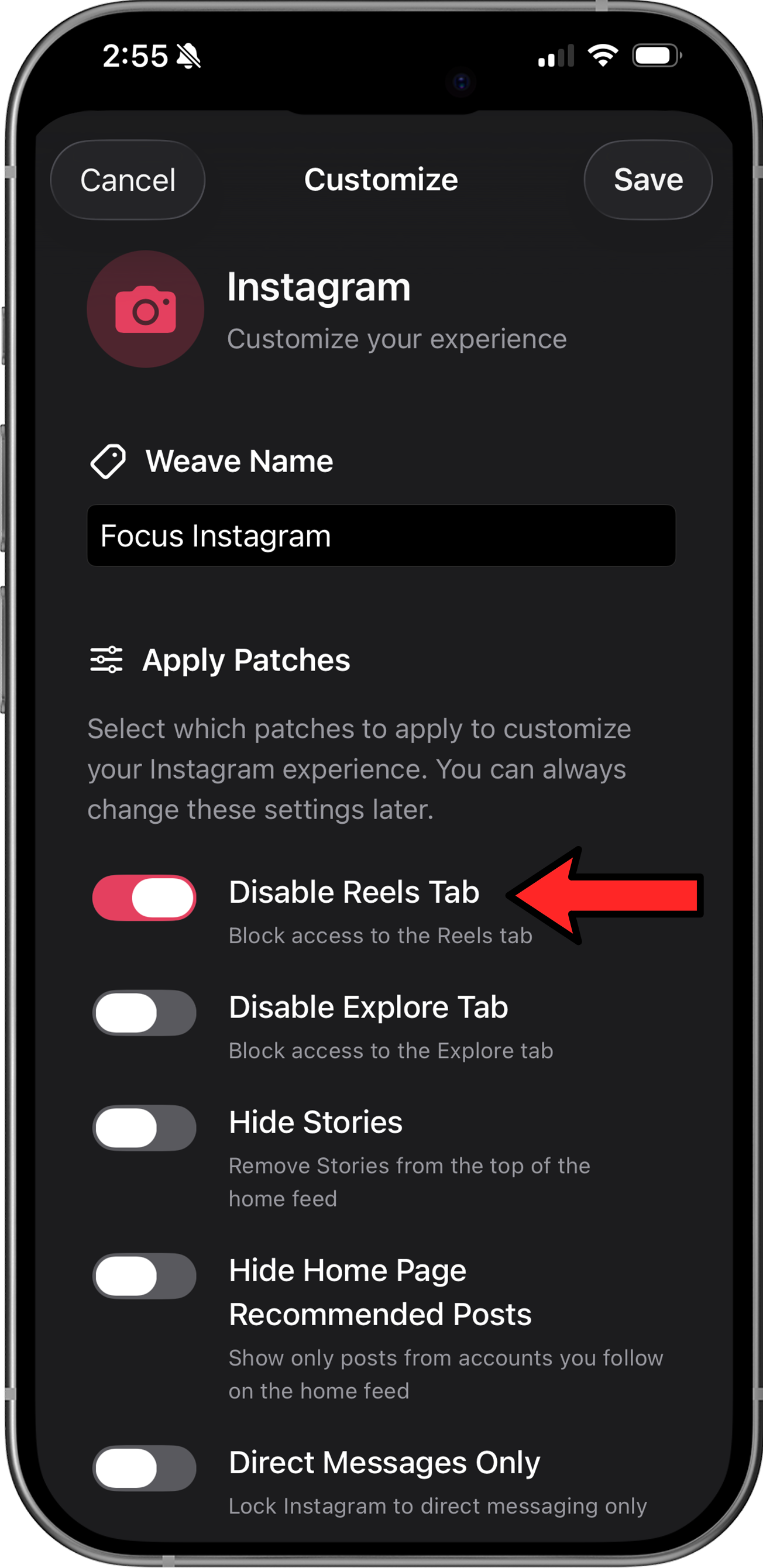
- Browse Instagram through LoomWeb instead of the native app
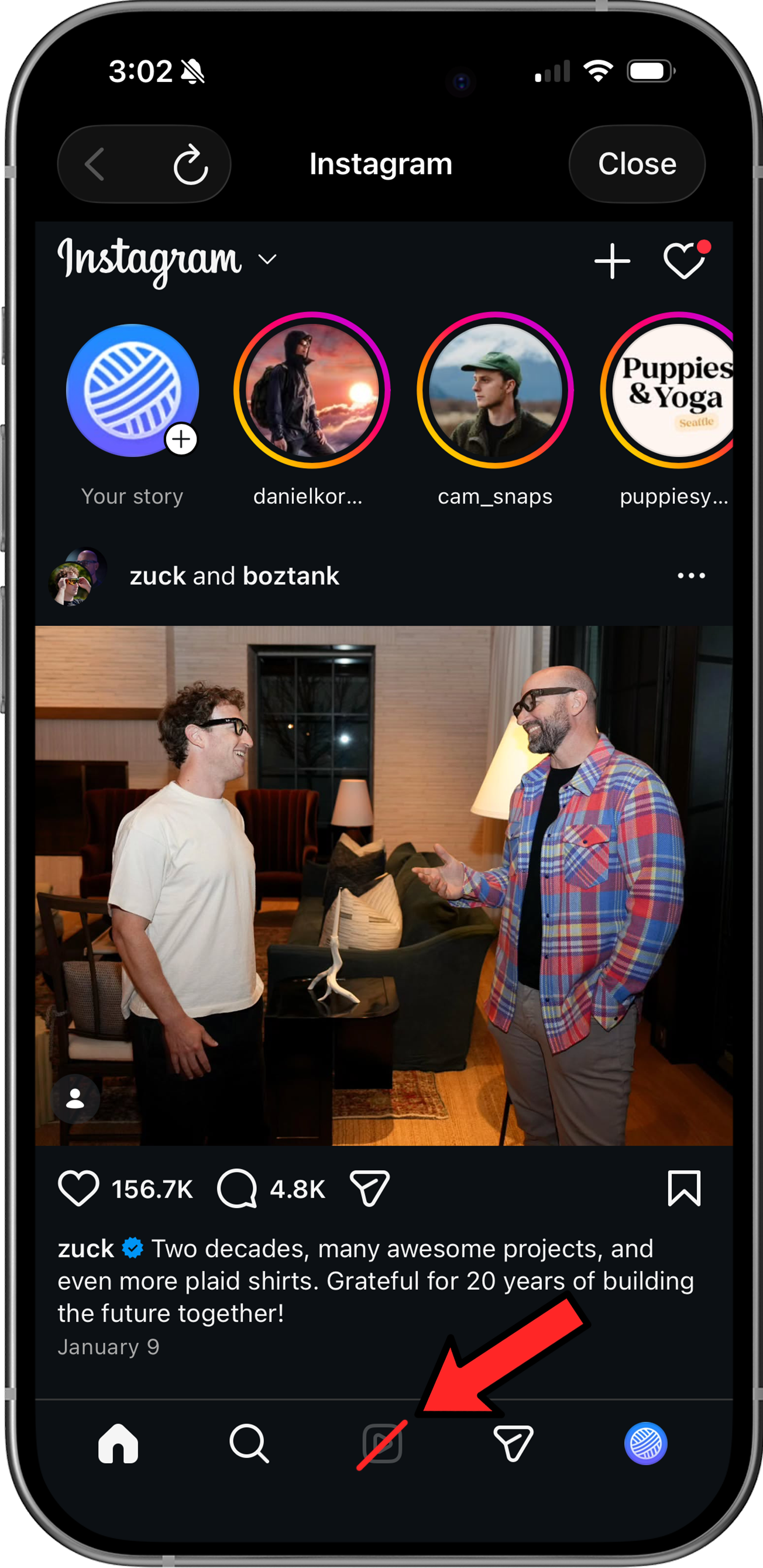
With LoomWeb, the Reels tab is disabled in your Instagram navigation. You can still access Stories, your feed, DMs, and your profile, just without the Reels rabbit hole.
Ready to browse Instagram without Reels?
Method 2: Instagram's Built-in Options (Limited)
Instagram doesn't offer a direct way to disable Reels entirely, but you can reduce how often they appear:
Mark Reels as "Not Interested"
- When viewing a Reel, tap the three dots (•••) menu
- Select "Not Interested"
- Instagram will show fewer similar Reels
Limitation: This only affects recommendations—it doesn't remove the Reels tab or stop you from accessing Reels entirely.
Adjust Content Preferences
- Go to your Profile > Settings > Content Preferences
- Navigate to "Suggested Content"
- Mark topics you want to see less of
Limitation: This reduces certain types of Reels but doesn't disable the feature.
Method 3: iOS Screen Time Limits
If the options above don’t work for you, you can still limit your overall Instagram usage using iOS Screen Time:
- Open Settings on your phone
- Tap Screen Time > App Limits
- Tap Add Limit and select Instagram
- Set your daily time limit (e.g., 30 minutes)
Limitation: This limits all of Instagram, not just Reels. You might hit your limit while DMing friends.
Method 4: Use the Web Version
Instagram's web version (instagram.com) historically had a less prominent Reels experience. However, Instagram has been adding more Reels features to the web over time, making this method less reliable.
Why LoomWeb is Different
Unlike workarounds that merely limit your usage or train the algorithm, LoomWeb takes a surgical approach:
- Complete removal: The Reels tab is blocked.
- Preserved functionality: DMs, Stories, and your feed work normally
- Customizable: Hide only what distracts you
- Multiple platforms: Also works for YouTube Shorts, X, and Facebook
- Privacy-focused: No data collection or tracking
The Bottom Line
Instagram won't let you disable Reels because it's too valuable for their engagement metrics. But that doesn't mean you're powerless. Whether you use LoomWeb for complete control, Screen Time for limits, or the manual "Not Interested" approach, taking any action is better than surrendering to the infinite scroll.
Your attention is valuable. Spend it intentionally.
Take Control of Your Instagram Experience
Download LoomWeb and browse social media on your terms—no Reels, no Shorts, no distractions.