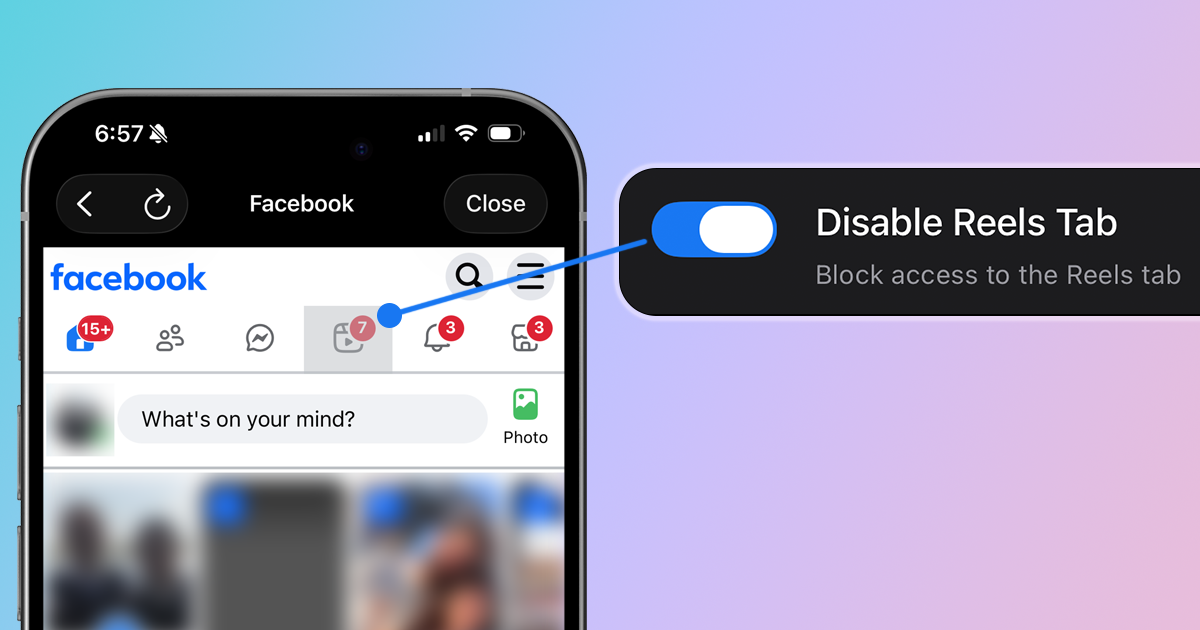
Facebook used to be a place to keep up with friends and family. Now it's increasingly dominated by Reels—short videos from strangers that Meta's algorithm thinks you'll watch. If you're tired of scrolling past endless Reels just to see what your actual friends are up to, here's how to disable Facebook Reels.
Why You Might Want to Disable Facebook Reels
Here's why many mobile users want to turn Reels off:
- Not why you use Facebook: You came to see updates from friends, not random viral videos
- Infinite scroll trap: Reels are designed to keep you swiping, wasting time you didn't plan to spend
- Algorithmic content: Most Reels are from accounts you don't follow, chosen by Meta's algorithm
Method 1: Use LoomWeb (Most Effective)
The most effective way to disable Facebook Reels on mobile is with LoomWeb, an app that lets you block specific features on social media platforms.
How it works:
- Download LoomWeb from the App Store or Google Play
- Create a new "Weave" (custom browsing configuration)
- Enable the "Disable Reels Tab" patch to remove the Reels button from navigation. Also toggle "Disable Reel Scrolling" to prevent infinite scrolling if you tap a Reel in your feed.
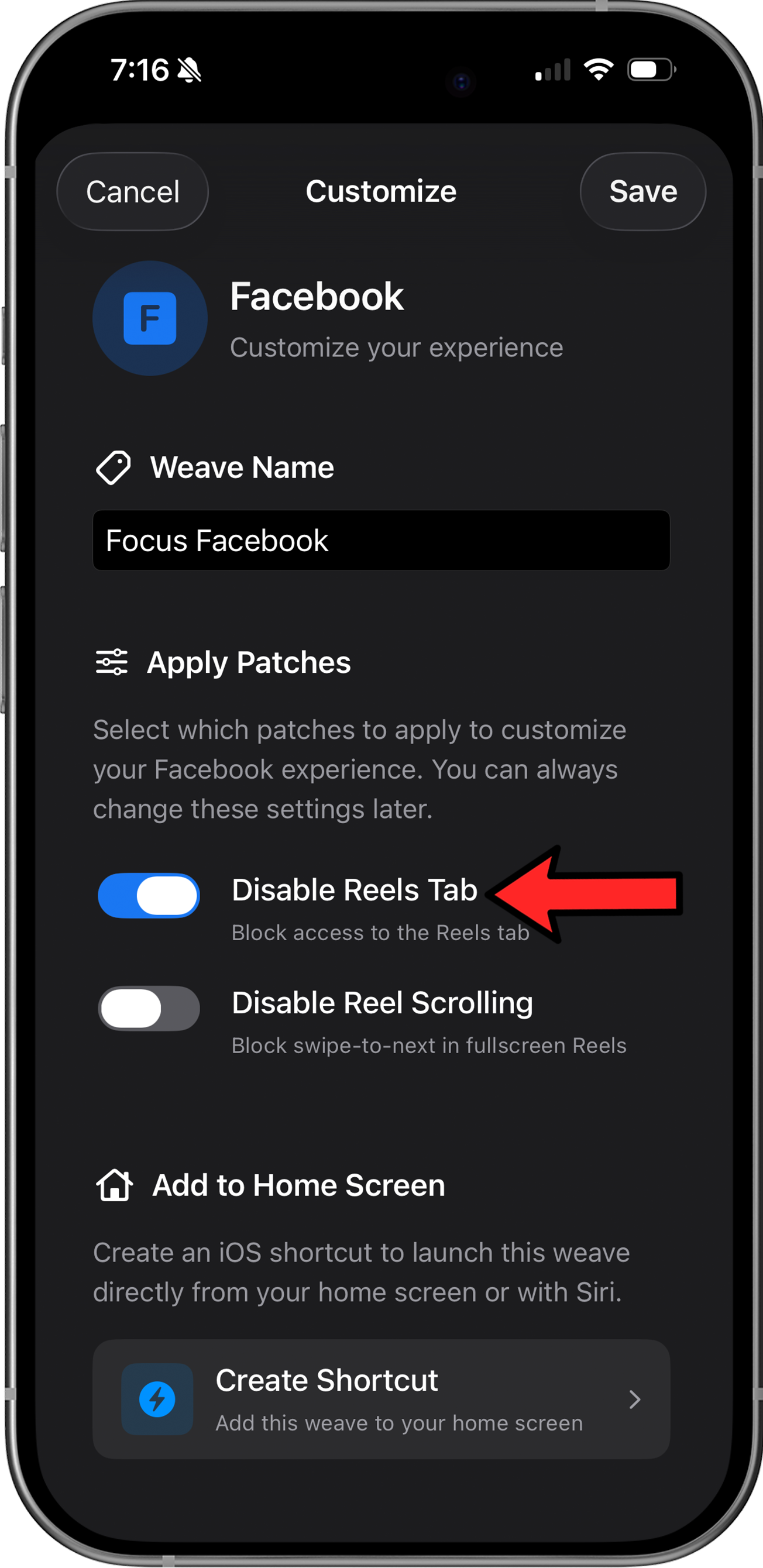
- Browse Facebook through LoomWeb instead of the native app
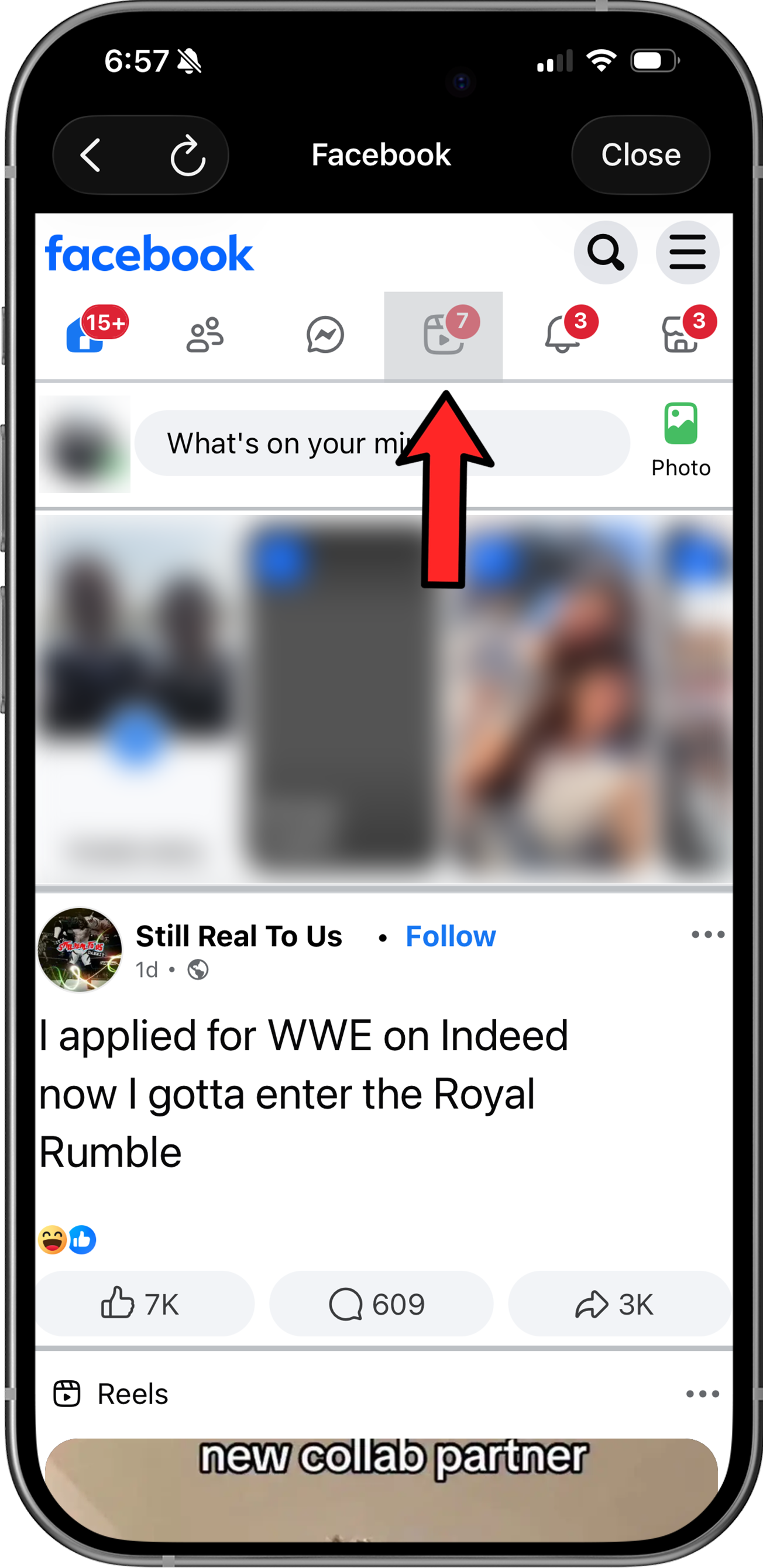
With LoomWeb, you get two layers of protection: the Reels tab is blocked, and even if a Reel appears in your feed and you tap it, you can't scroll to the next one. Watch what you intended, then get back to your feed.
Ready to browse Facebook without Reels?
Method 2: Switch to the "Feeds" Tab (Limited)
- Open the Facebook app and tap the Menu (three horizontal lines) in the bottom right corner.
- Tap on the Feeds tile (you may need to scroll down or tap "See More" to find it).
- Select Friends from the top bar to view a clean, chronological timeline without Reels or "Suggested for You" posts.
Limitation: Facebook does not allow you to set this as your default home screen. You must manually navigate to this menu every single time you open the app, as the main "Home" tab will always revert to showing algorithmic content.
Method 3: iOS Screen Time Limits (Limited)
If you can't block Reels specifically, you can limit your overall Facebook usage:
- Open Settings on your phone
- Tap Screen Time > App Limits
- Tap Add Limit and select Facebook
- Set your daily time limit (e.g., 30 minutes)
- Enable Block at End of Limit to enforce it
Limitation: This limits all of Facebook, not just Reels. You might hit your limit before catching up with friends.
Why Facebook Won't Let You Disable Reels
Meta has no incentive to let you turn off Reels because:
- Engagement metrics: Reels dramatically increase time spent on the app
- Ad revenue: More views means more ad impressions and revenue
- Competition with other Platforms: Meta is trying to keep users from migrating to TikToks and Shorts
Facebook's priorities are engagement and revenue, not giving you a clean, friend-focused experience.
Why LoomWeb is the Best Solution
Unlike temporary workarounds, LoomWeb gives you permanent control:
- Block the Reels tab: Disable it in navigation bar
- Disable Reels scrolling: Even if you tap a Reel, you can't doomscroll to the next one
- Keep what matters: Your feed, Messenger, Groups, and Events all work normally
- Multiple platforms: Also supports blocking Instagram Reels, YouTube Shorts, and X videos
- Actively maintained: Regular updates ensure patches keep working as Facebook changes
The Bottom Line
Facebook Reels exists to generate revenue for Meta, not because users asked for it. The feature is designed to maximize your time on the app, not to help you connect with friends and family.
Meta won't give you an off switch—it's too valuable to their business. But with LoomWeb, you can take that control for yourself. Browse Facebook the way it used to be: updates from people you actually know, without the endless stream of algorithmic video content.
Your feed should show you what you want to see, not what an algorithm wants you to watch.
Take Control of Your Facebook Experience
Download LoomWeb and browse Facebook on your terms—friends and family only, no Reels rabbit holes.