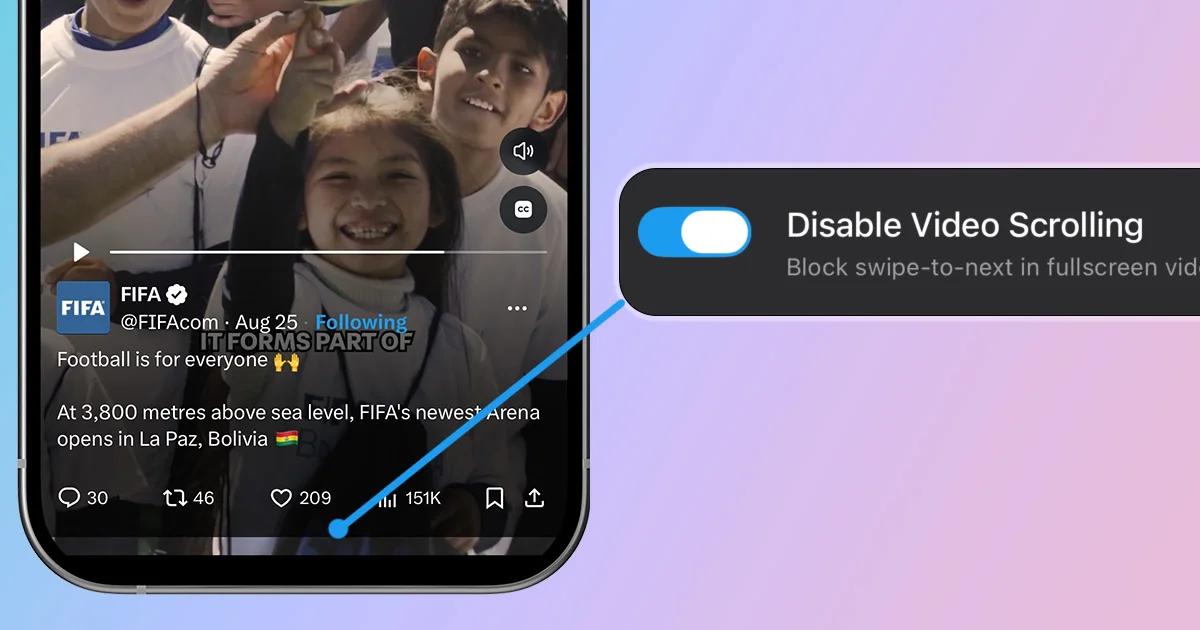
Every major platform is rushing to find new ways to keep users stuck scrolling through short-form content. X is no exception. Have you ever clicked on a single video in your feed and suddenly found yourself doomscrolling? It's not your fault; that's how X designed it. This guide shows you how to disable video scrolling on X for iOS and Android.
How to Disable X Video Scrolling With LoomWeb
LoomWeb includes a Disable Video Scrolling patch for X. It blocks swipe-to-next behavior in fullscreen videos, so you can watch the clip you opened without being pushed into another one.
- Download LoomWeb from the App Store or Google Play
- Create or edit an X Weave
- Enable Disable Video Scrolling
- Launch X through LoomWeb
Regular video playback still works. The patch only stops the fullscreen player from becoming a swipeable feed.
Want to watch one X video without opening an endless feed?
How to Turn Off Video Autoplay on X
Turning off autoplay will not disable fullscreen video scrolling, but it does stop videos from playing automatically in the timeline and Explore. X provides this setting on both iOS and Android:
- Open Settings and privacy in X
- Select Accessibility, display, and languages
- Open Data usage
- Select Video autoplay
- Choose Never
X stores autoplay preferences separately for the app and website, so you may need to change the setting in more than one place. You can check the current instructions on X's official video help page.
Make the Rest of X Less Distracting
Video scrolling is only one way X can pull you away from what you opened the app to do. If you want a simpler version of X, these LoomWeb patches work well together:
- Disable Video Scrolling: stops fullscreen swipe-to-next videos
- Hide Home Page Recommended Posts: keeps the home feed closer to accounts you follow
- Disable Search & Explore: removes trending topics and the Explore feed
- Disable Grok Tab: removes Grok from the main navigation
You do not have to remove every feature. Pick the ones that waste your time and keep the parts of X you still use.
Frequently Asked Questions
Does turning off autoplay stop video scrolling on X?
No. Autoplay controls whether videos begin playing automatically. It does not stop you from swiping to another video in the fullscreen player.
Can I still watch videos after disabling video scrolling?
Yes. LoomWeb's patch leaves normal video playback available. It only blocks the swipe-to-next behavior that turns one fullscreen video into a continuous feed.
Does Disable Video Scrolling work on iOS and Android?
Yes. The patch is available when you use X through a LoomWeb Weave on either platform.
The Bottom Line
X already has a timeline, Explore, trending topics, and Grok. It does not need to turn every video into another feed too.
Turn off autoplay if you do not want videos starting by themselves. Disable video scrolling if you want to stop the fullscreen swipe loop. Then watch the video you meant to watch and move on.
Stop X Video Doomscrolling
Download LoomWeb and stop fullscreen X videos from turning into an endless feed.