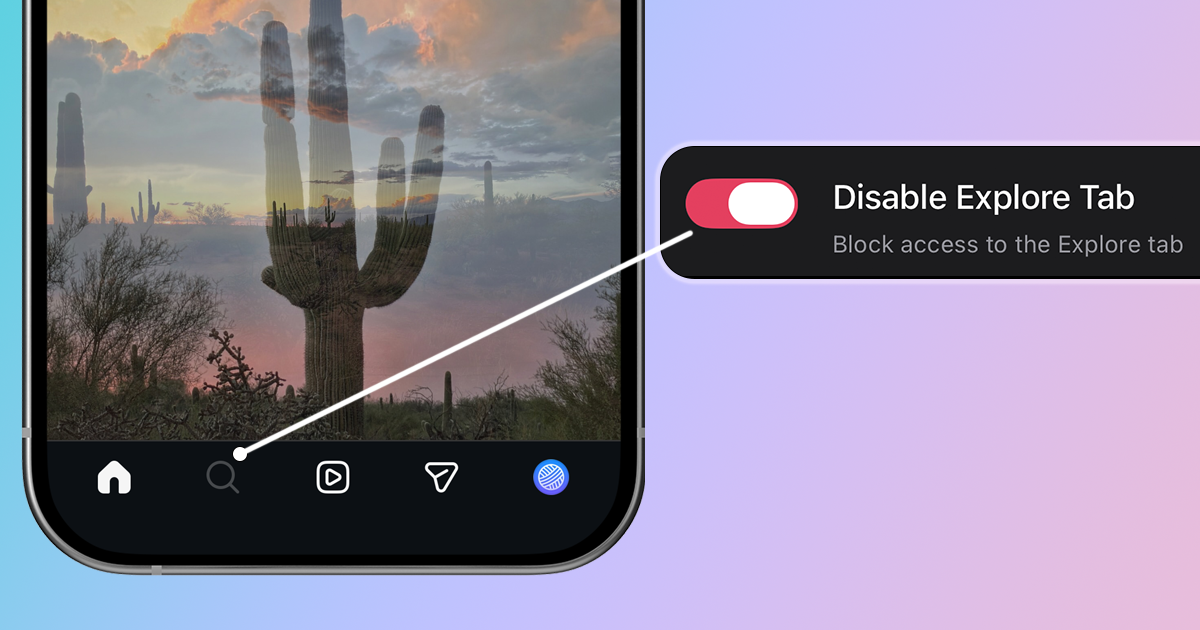
The Instagram Explore page is designed to keep you scrolling through content you never asked for. If you've ever tapped the magnifying glass icon "just to check" and emerged 60 minutes later wondering where the time went, you know the problem. Here's how to disable or block the Explore page on Instagram.
Why You Might Want to Disable Instagram Explore
The Explore page uses Instagram's algorithm to surface content it thinks you'll engage with. While that sounds helpful, it's optimized for Instagram's goals, not yours:
- Endless rabbit holes: One tap leads to hours of content you didn't intend to see
- Algorithmic manipulation: The content is selected to maximize your time on the app, not your wellbeing
- Distraction from purpose: You opened Instagram to check on friends, not browse random posts
- Comparison trap: Explore often surfaces highlight reels that can negatively impact self-image
Method 1: Use LoomWeb (Most Effective)
The most effective way to disable the Instagram Explore page is with LoomWeb, an app that allows you to block specific features on social media sites to eliminate distractions.
How it works:
- Download LoomWeb from the App Store or Google Play
- Create a new "Weave" (custom browsing configuration)
- Enable the "Disable Explore" patch for Instagram
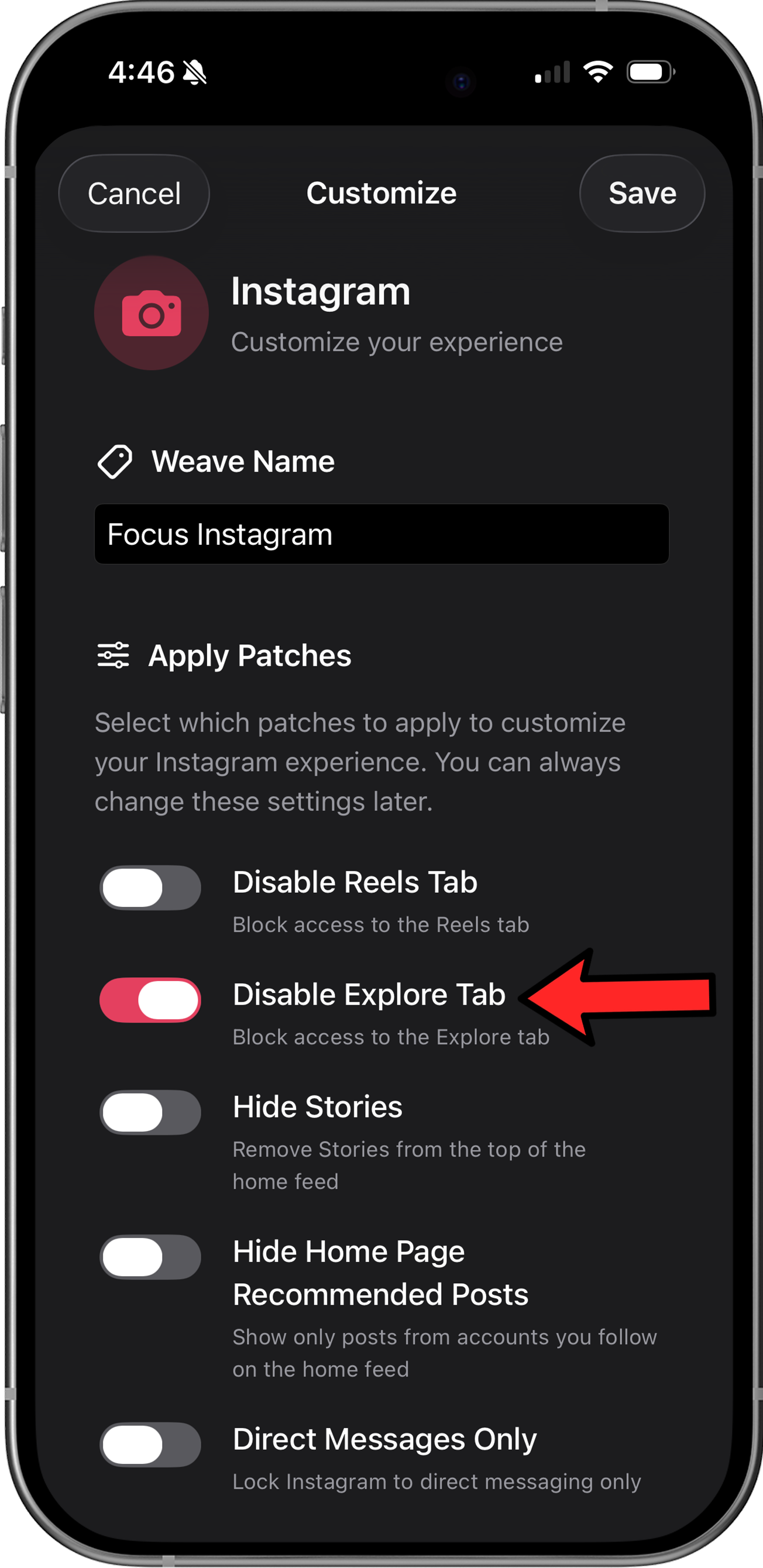
- Browse Instagram through LoomWeb instead of the native app
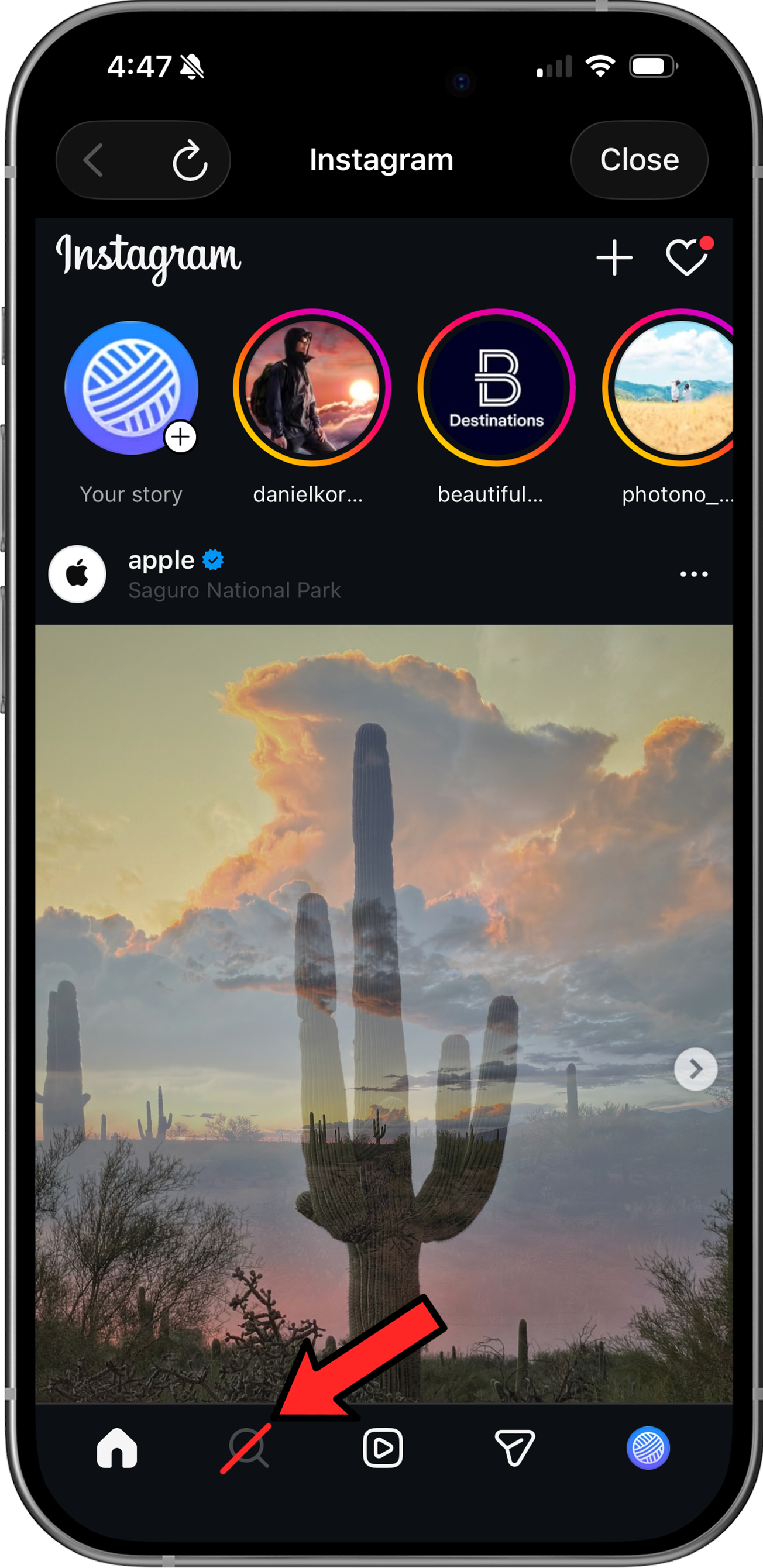
LoomWeb gives you two useful options: block the Explore tab entirely, or keep Instagram Search available while hiding the Explore grid. That means you can still look up a person, creator, or topic intentionally without opening the recommendation wall underneath it.
Which Explore Option Should You Choose?
- Disable Tab: best if Explore is a hard trigger and you want the cleanest possible Instagram setup.
- Keep Search: best if you still need to search Instagram but do not want algorithmic Explore recommendations filling the page.
Ready to browse Instagram without the Explore page?
Method 2: iOS Screen Time Limits
If you prefer to use Apple's built-in tools, you can limit your overall time on the app instead. While this won't specifically target the Explore feed like the method above, it creates a "friction barrier" that prevents you from getting lost in the scroll for hours.
Here is how to configure a hard limit for Instagram on your phone:
- Open Settings: Go to your phone's home screen, tap Settings, and select Screen Time (look for the purple hourglass icon).
- Add a New Limit: Tap on App Limits > Add Limit. You may need to enter your Screen Time passcode if you have one set.
- Select Instagram: Tap the Social category to expand it. Check the circle next to Instagram and tap Next in the top right corner.
- Set the Duration: Scroll the timer to choose your daily allowance (e.g., 15 minutes). You can also tap "Customize Days" if you want stricter limits on weekends.
- Enforce the Rule: This is the most critical step. Ensure the toggle for Block at End of Limit is turned ON. Without this, your phone will only send a polite notification that is easy to ignore.
- Save: Tap Add to finalize the settings.
Pro Tip: The "Friend Lock" Strategy
The main weakness of iOS Screen Time is that it is easy to bypass. When the time is up, you can simply tap "Ignore Limit for 15 minutes."
To make this method "doomscroll-proof," ask a partner or friend to set a Screen Time Passcode that you don't know. This forces you to physically ask them to unlock the app if you want to use it past your limit, adding a significant layer of accountability.
Why LoomWeb is the Better Solution
Unlike workarounds that try to influence the algorithm or limit your overall usage, LoomWeb gives you surgical control:
- Targeted blocking: Disable Explore while keeping everything else.
- Stay connected: Block the addiction, not your friends. You retain full access to DMs and your main feed so you aren't cut off from communication.
- Combine with other patches: Also hide Reels, Stories, or suggested posts.
- Multiple platforms: Works for YouTube, X, and Facebook too.
- Privacy-focused: No data collection or tracking.
The Bottom Line
Instagram's Explore page exists to maximize your time on the app, not to help you. The platform has no incentive to let you disable it, which is why there's no official "turn off Explore" setting.
But you're not powerless. With LoomWeb, you can block Explore entirely and use Instagram the way you want to—checking in on friends, posting your own content, and getting out without losing an hour to algorithmic recommendations.
Your attention is valuable. Don't let an algorithm decide how you spend it.
Take Control of Your Instagram Experience
Download LoomWeb and browse social media on your terms—no Explore, no Reels, no distractions.