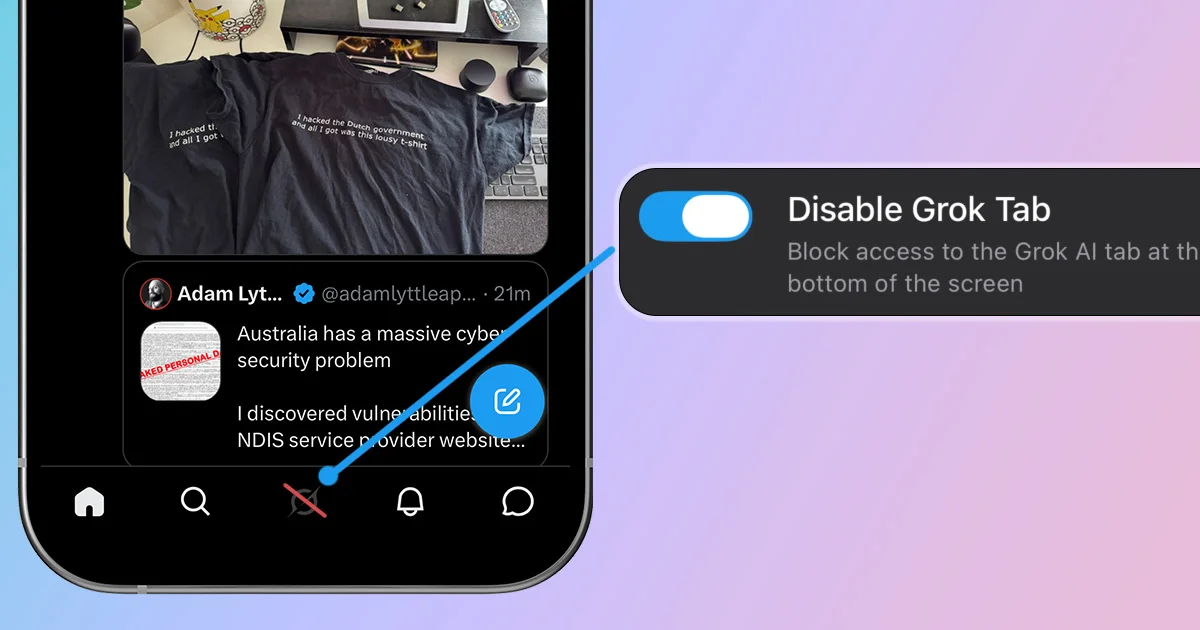
Now that short-form content has been crammed into every corner of social media, the focus seems to have shifted to shoving AI features at users. On X, the latest example is Grok appearing in the navigation bar. People have plenty of reasons for wanting it gone, and X definitely has not made it easy to remove. This guide shows you how to hide the Grok tab on iOS and Android.
How to Remove the Grok Tab With LoomWeb
LoomWeb includes a Disable Grok Tab patch for X. It removes access to Grok from the bottom navigation while leaving the timeline, replies, profiles, and direct messages available.
- Download LoomWeb from the App Store or Google Play
- Create or edit an X Weave
- Enable Disable Grok Tab
- Save and launch X through LoomWeb
That is it. You can use X for the things you came to do without keeping an AI button one tap away. If you also want a quieter timeline, pair it with Hide Home Page Recommended Posts, Disable Search & Explore, or Disable Video Scrolling.
Want to use X without the Grok tab?
How to Turn Off Grok Data Sharing
If you do not want your public posts or Grok interactions used for training and fine-tuning, X provides a separate privacy control:
- Open Settings and privacy in X
- Select Privacy and safety
- Open Data sharing and personalization
- Select Grok & Third-party Collaborators
- Turn off the options under Data Sharing and Grok Personalization
You can review the latest wording and steps on X's official Grok help page.
Make the Rest of X Less AI-Heavy
Hiding Grok solves one part of the problem. X still includes recommended posts, trending topics, and fullscreen video feeds. If you want X to feel more like the old Twitter timeline, these LoomWeb patches work well together:
- Disable Grok Tab: removes Grok from the main navigation
- Hide Home Page Recommended Posts: keeps the home feed closer to accounts you follow
- Disable Search & Explore: removes trending topics and the Explore feed
- Disable Video Scrolling: prevents one fullscreen video from becoming an endless swipe session
You do not have to turn everything off. Pick the parts that bother you and leave the rest alone.
Frequently Asked Questions
Can I remove the Grok tab in X's settings?
X's settings let you opt out of Grok training and personalization, but they do not include a control for hiding the Grok navigation tab. LoomWeb can remove the tab when you use X through an X Weave.
Does turning off Grok data sharing remove Grok?
No. Turning off data sharing changes how your data may be used for Grok training and personalization. The Grok button remains visible unless you hide it separately.
Can I still use the rest of X after disabling Grok?
Yes. LoomWeb's Disable Grok Tab patch targets the Grok button. Your timeline, replies, profiles, and messages still work unless you choose additional patches.
The Bottom Line
You should not have to keep an AI shortcut in your navigation just because you still use X. If you want the timeline, replies, and messages without Grok, hide the tab. If you also want to limit how your data is used, turn off Grok data sharing in X's privacy settings.
The result is simple: less AI in your face, without giving up the parts of X you still find useful.
Remove the Grok Tab From X
Download LoomWeb and use X without an AI shortcut in your navigation.